

Table of contents
Table of contents
An ESP32 camera is the cheapest way to put a Wi-Fi camera in a project. It takes snapshots, streams to a browser and fits in a matchbox. It also has clear limits, and knowing them saves you a weekend. This guide covers what an ESP32 camera is, how to set one up, ten projects, and when a Raspberry Pi camera is the better tool.
What is an ESP32 camera?
An ESP32 camera is an ESP32 board with a small camera module attached. The most common one is the ESP32-CAM: an ESP32, a 2 MP OV2640 camera, a microSD slot and Wi-Fi on a board about the size of a matchbox.
It can capture photos, stream video to a browser, host a small camera web server or send images over Wi-Fi. Makers like it because it is small, cheap and flexible.
Not every ESP32 board can take a camera. ESP32-CAM boards are built around it. Regular ESP32 boards, such as NULA Mini ESP32-C6, are the better choice for the rest of a smart home project: sensors, MQTT devices and Home Assistant buttons. When the camera is the main part of the project, the Raspberry Pi AI Camera goes much further.
How does an ESP32 camera work?
The camera sensor captures a frame and the ESP32 handles everything else: Wi-Fi, storage and the code that decides what to do with the image. Most projects are written in the Arduino IDE or ESP-IDF.
- The camera sensor captures an image.
- The ESP32 compresses it to JPEG, then stores or processes it.
- The ESP32 connects over Wi-Fi.
- You view the image or stream in a browser, an app or Home Assistant.
Many ESP32-CAM boards also save photos to a microSD card, so they can work without a network. The ESP32 itself is a microcontroller, not a computer, so it has far less processing power and memory than a Raspberry Pi.
What can you use an ESP32 camera for?
- a simple Wi-Fi camera
- a basic security or door camera
- a time-lapse camera
- a wildlife or pet monitor
- a mailbox or package monitor
- image capture for IoT projects
- a visual trigger for an automation
- a camera stream in a web page
- simple Home Assistant camera experiments
ESP32 cameras suit light jobs: a snapshot, a short stream, a photo when a sensor fires. They are not built for high-quality video, heavy image processing or serious AI.
ESP32-CAM vs regular ESP32 board
| Feature | ESP32-CAM | Regular ESP32 board |
|---|---|---|
| Camera support | Built in | Usually none |
| Best for | Simple Wi-Fi camera projects | Sensors, MQTT, Home Assistant, IoT devices |
| Free GPIO | Few, the camera uses most of them | Many |
| Beginner friendliness | Harder: most have no USB port | Easier: plug in USB and upload |
| Best project type | Image capture and streaming | Smart home sensors and connected devices |
If the project needs a camera, an ESP32-CAM is useful. If it needs Wi-Fi, sensors, MQTT or Home Assistant without a camera, a regular ESP32 board is easier and leaves more pins free. NULA Mini ESP32-C6 has USB-C, Wi-Fi 6, Bluetooth and a Qwiic connector for sensors. It has no camera interface, so it is the board for the sensors and triggers around the camera, not the camera itself.
ESP32 camera vs Raspberry Pi camera
| Feature | ESP32 camera | Raspberry Pi camera setup |
|---|---|---|
| Cost | Lower | Higher |
| Size | Very compact | Larger |
| Wi-Fi | Built in | Built in on Raspberry Pi 5 |
| Processing power | Limited | Much higher |
| Image processing | Basic | Strong |
| AI and computer vision | Very limited | Much better |
| Best for | Simple streams and snapshots | AI, object detection, local processing |
The Raspberry Pi AI Camera has a Sony IMX500 sensor that runs the neural network on the camera itself, so the Pi gets back "person, 92 %" instead of raw frames it has to analyse. Pair it with a Raspberry Pi 5 for object detection, package detection, wildlife monitoring, smart security cameras and image classification.
Our Raspberry Pi AI Camera guide covers it in detail.
How to set up an ESP32 camera
- Choose the board. These steps assume the common AI-Thinker ESP32-CAM.
- In the Arduino IDE, install the ESP32 board package from the Boards Manager.
- Select AI Thinker ESP32-CAM as the board.
- Connect a USB-to-serial adapter: its TX to the board's U0R, RX to U0T, plus GND and power.
- Put the board in flashing mode: connect
IO0to GND, then press reset. - Open File > Examples > ESP32 > Camera > CameraWebServer, select the AI-Thinker camera model in the code, and enter your Wi-Fi name and password.
- Upload, disconnect
IO0from GND and press reset. - Open the IP address from the Serial Monitor in a browser and start the stream.
- Test the image quality and power stability before you mount it anywhere.
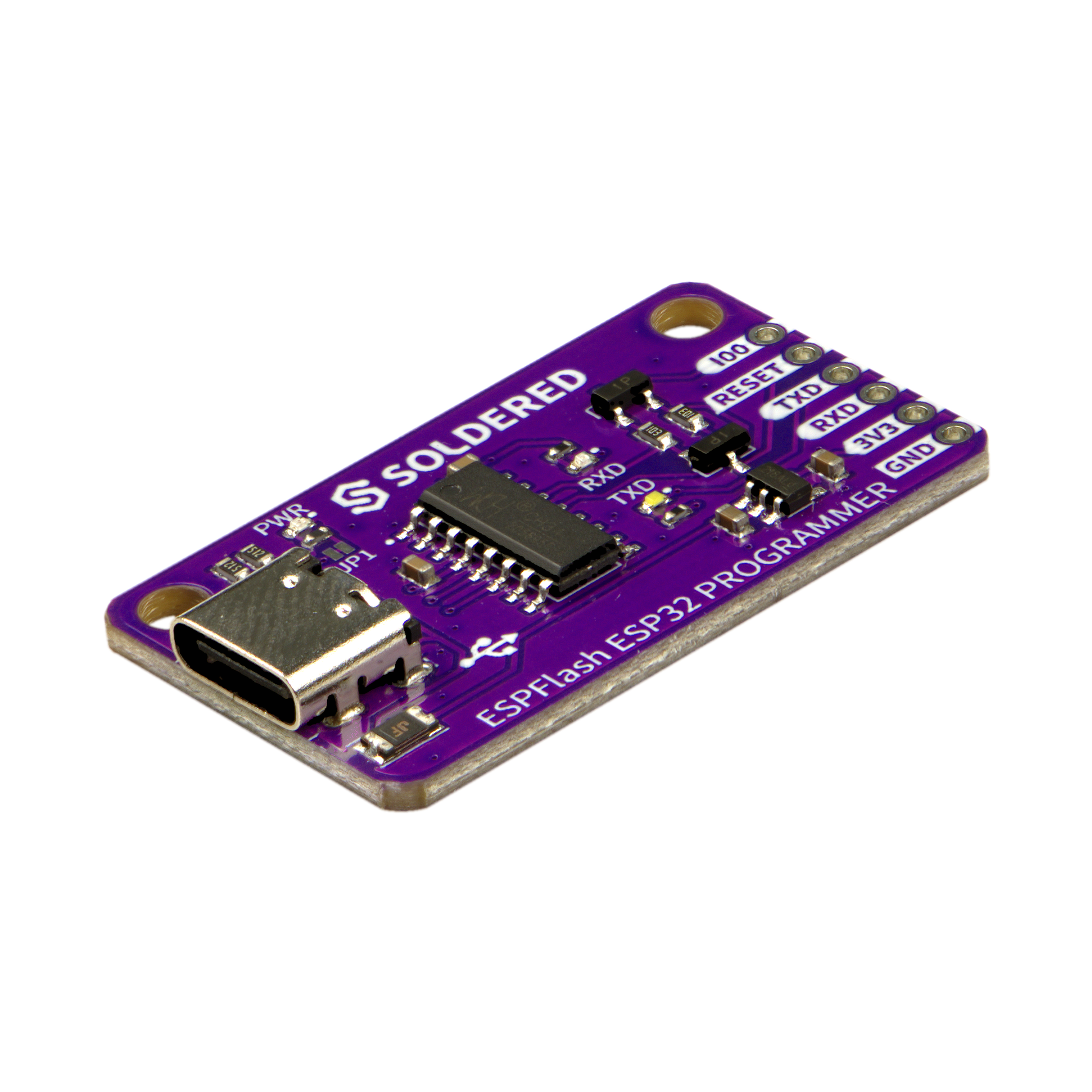
Most ESP32-CAM boards have no USB port, which makes step 4 and 5 the fiddly part. The USB-UART CH340 converter does the job with jumper wires. The ESPFlash programmer goes further: it drives IO0 and reset for you, so the upload starts with no buttons to hold.
Best ESP32 camera projects
1. ESP32 camera web server
The CameraWebServer example streams the camera to any browser on your network, with controls for resolution and brightness. It is the first thing to build, because it proves the board, power and Wi-Fi all work. For the non-camera parts of the project, such as a door sensor that starts recording, use a regular ESP32 board like NULA Mini ESP32-C6.
2. DIY smart home camera
Point an ESP32-CAM at the front door or garage and add it to your smart home as a simple local camera. When the project needs to recognise what it sees, move to a Raspberry Pi 5 with the Raspberry Pi AI Camera.
3. Package delivery monitor
Watch the doorstep and get a message when a package appears. An ESP32-CAM can send a photo every few minutes. The Raspberry Pi AI Camera can tell a box from a cat and send the alert only when it matters.
4. Wildlife or pet monitor
Mount a camera at a bird feeder, garden path or pet bed and capture photos when something moves. The Raspberry Pi AI Camera can label each shot, so you can search for "fox" instead of scrolling through 500 photos of leaves.
5. Time-lapse camera
Take a photo every few minutes of a plant, the sky, a 3D print or a workshop build, and save it to microSD. An ESP32-CAM is enough for this. A Raspberry Pi can stitch the photos into a video on the spot.
6. Smart mailbox camera
A camera in the mailbox shows you what arrived. Often you only need to know that something did: an ESP32 with a switch on the flap, sleeping between openings, does that on a battery for months. NULA DeepSleep ESP32-S3 draws about 16 µA while sleeping.
7. Home Assistant camera experiment
Add an ESP32 camera to Home Assistant through ESPHome and show its stream on your dashboard. Run Home Assistant on a Raspberry Pi 5, and show the camera's status on an Inkplate 6FLICK by the door.
8. Door status camera with sensor trigger
A camera that only wakes when a door opens or something moves uses far less power and storage. A reed switch or a PIR sensor with Qwiic on NULA Mini ESP32-C6 sends the trigger, and the camera takes the photo.
9. Local AI camera project
For object detection, people counting or image classification, skip the ESP32-CAM and start with the Raspberry Pi AI Camera on a Raspberry Pi 5. The model runs on the camera, the Pi stores the results, and nothing leaves your network.
10. Camera status dashboard
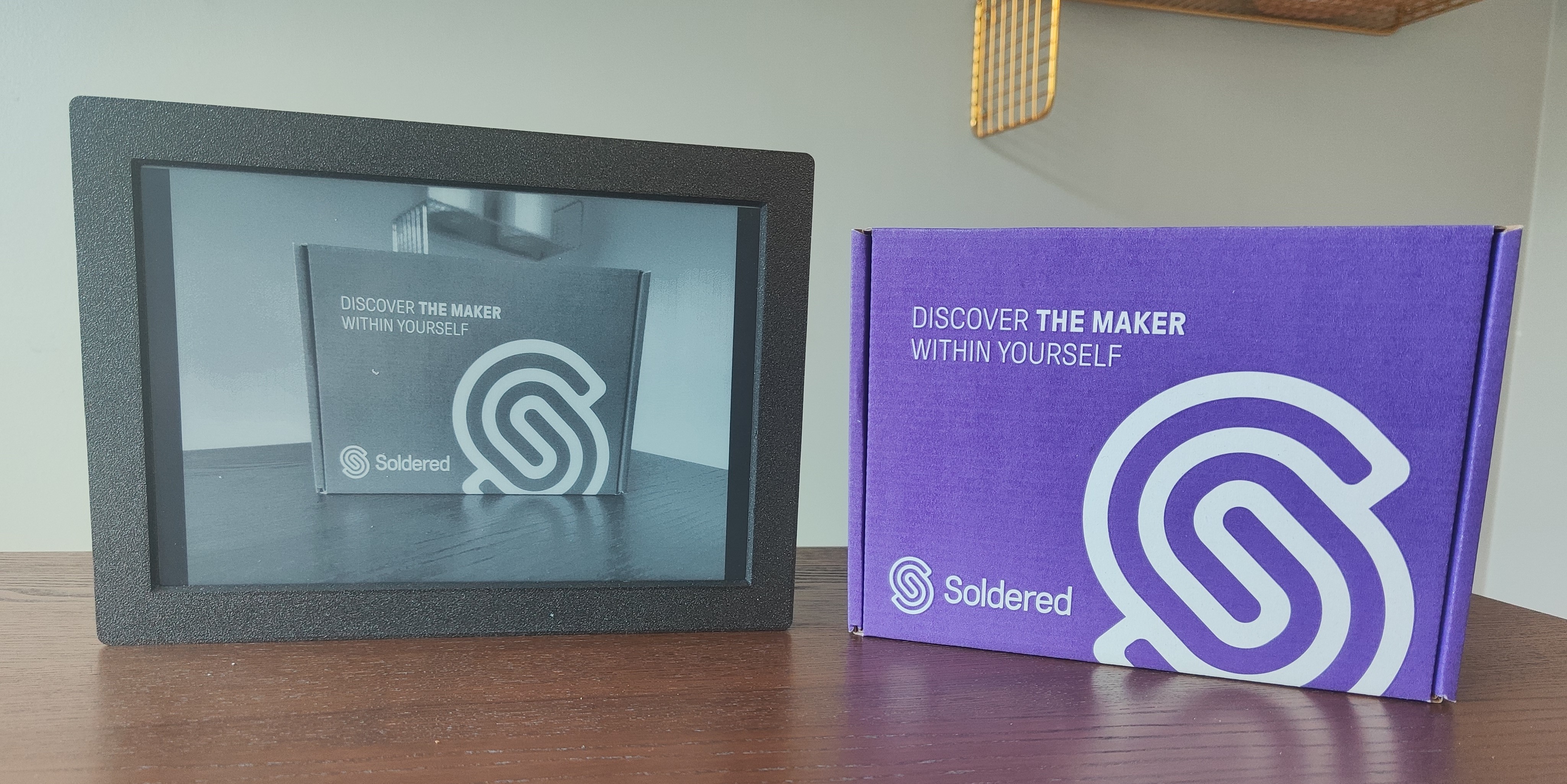
Show the last detection, the camera's status and the state of each room on an e-paper display by the door. Inkplate 10 can even show the last snapshot itself, in greyscale.
ESP32 camera for Home Assistant
- Simple streams. ESPHome supports ESP32 cameras directly, and the stream shows up in Home Assistant like any other camera.
- Reliable systems. For cameras you depend on, a Raspberry Pi or dedicated camera hardware does better than an ESP32-CAM.
- Sensors and triggers. ESP32 boards without cameras are the best part of most Home Assistant setups: buttons, door sensors, motion sensors and automation triggers.
- Dashboards. Inkplate can show camera and smart home status on an e-paper screen that stays readable all day.
Our ESPHome MQTT guide covers the connection, and the Home Assistant e-paper displays guide covers the screen.
Common ESP32 camera mistakes
- Weak power supply. The camera and Wi-Fi draw current in bursts. A weak supply causes random resets and "brownout detector" messages. Use a solid 5 V supply.
- Wrong board selected. Pick the exact board and camera model, or the camera fails to start.
- TX and RX not crossed. The adapter's TX goes to the board's RX, and RX to TX.
-
Not in flashing mode.
IO0must be at GND during reset, then disconnected to run the code. - Expecting Raspberry Pi image quality. A 2 MP sensor and a microcontroller have limits.
- Expecting real object detection. Use a Raspberry Pi AI Camera for that.
- A camera where a sensor would do. If you only need to know a door opened, a reed switch is simpler.
- Poor Wi-Fi placement. The small on-board antenna struggles through walls.
- No enclosure. Dust, rain and fingerprints ruin the lens fast.
- Streaming high-resolution video all day. The board heats up and the stream stutters. Lower the resolution or take snapshots instead.
When should you use an ESP32 camera?
- you need a small, low-cost camera
- modest image quality is enough
- you want Wi-Fi image capture
- you want a simple camera web server
- you are building a prototype or an experiment
- you need occasional snapshots more than continuous video
When should you use Raspberry Pi AI Camera instead?
- you need object detection
- you need better image processing
- you want to run AI models locally
- the camera has to work reliably every day
- you are building a smart security camera
- you want to explore computer vision
- the camera is the main part of the project, not an add-on
The AI Camera does the inference on the sensor, so even a Raspberry Pi 5 with 4 GB has plenty left for recording and the dashboard.
Why Soldered is a great place to start building camera and smart home projects
Soldered covers both sides of a camera project. NULA ESP32 boards handle the sensors, triggers, MQTT and Home Assistant devices around the camera. Raspberry Pi 5 and the Raspberry Pi AI Camera handle the vision. Inkplate displays show the result on the wall. Start with a cheap ESP32-CAM stream, and move to the Pi when the project needs to understand what it sees.
Our ESP32 projects for beginners and Raspberry Pi project ideas have more builds for both.
Frequently asked questions
What is an ESP32 camera?
An ESP32 board with a small camera module. It captures images, streams basic video, hosts a simple camera web server and sends images over Wi-Fi.
What is ESP32-CAM used for?
Simple camera projects, Wi-Fi image capture, basic streaming, smart home experiments, time-lapse cameras, low-cost monitoring and IoT prototypes.
Can ESP32 camera stream video?
Yes, usually through a local web server. Quality and reliability are limited compared with a Raspberry Pi camera.
Can ESP32-CAM work with Arduino IDE?
Yes. Install the ESP32 board package, select the right board and camera model, and upload the CameraWebServer example.
Is ESP32-CAM good for Home Assistant?
For simple experiments, yes, through ESPHome. For cameras you depend on, a Raspberry Pi or dedicated camera hardware is better.
What is the difference between ESP32 camera and Raspberry Pi camera?
An ESP32 camera is smaller and cheaper but has little processing power. A Raspberry Pi camera setup is better for image processing, AI and object detection.
Can ESP32-CAM do object detection?
Not well. It has too little processing power. Use the Raspberry Pi AI Camera for object detection.
Does ESP32-CAM need Wi-Fi?
Most projects use Wi-Fi to stream or send images, but many boards can also save photos to microSD without a network.
Why is my ESP32-CAM not uploading code?
Usually the wrong board selection, TX and RX not crossed, IO0 not at GND during reset, a weak power supply or the wrong serial port.
Should I use ESP32-CAM or Raspberry Pi AI Camera?
ESP32-CAM for cheap snapshots and basic Wi-Fi streams. The Raspberry Pi AI Camera for image processing, object detection and local AI.


