

Table of contents
Table of contents
An LCD is the first screen most makers use. It is cheap, it shows text and numbers, and an I2C version connects to an Arduino or ESP32 with one cable. This guide covers how LCDs work, which types exist, how to wire one up, and when e-paper is the better choice.
What is an LCD display?
LCD stands for liquid crystal display. The liquid crystals do not make light. They block or pass light from a backlight behind them.
Calculators, thermostats and multimeters all use them. For makers, the usual one is the 16x2 character LCD: 16 characters on each of 2 rows. Soldered's version has an I2C adapter already fitted and a Qwiic connector.


How does an LCD display work?
Each pixel is a tiny window of liquid crystal. A voltage turns the crystals, and that decides whether backlight gets through. A controller chip, usually the HD44780, handles the pixels, so your code only sends characters and commands.
- The microcontroller sends a character or a command.
- The LCD controller decides which pixels to change.
- The liquid crystals in those pixels turn.
- The backlight shows through the open pixels.
Common types of LCD displays
Character LCD displays
A character LCD shows letters and digits in a fixed grid, each in its own 5x8 dot box. The usual sizes are 16x2 and 20x4. Use one for values, menus and status messages. It is the most common display in Arduino beginner projects.
Graphic LCD displays
A graphic LCD is a grid of individual pixels, for example 128x64. It can draw icons, shapes and fonts of any size. It is more flexible than a character LCD, but harder to program.
TFT LCD displays
A TFT LCD is a full-colour screen. It suits touch interfaces, charts and dashboards. It needs more memory than a character LCD, and the backlight draws more power.
I2C LCD displays
A bare character LCD has 16 pins and needs six or more of your board's pins. An I2C LCD adds a small adapter on the back, so you need only four wires: VCC, GND, SDA and SCL. With Qwiic, those four are one cable.
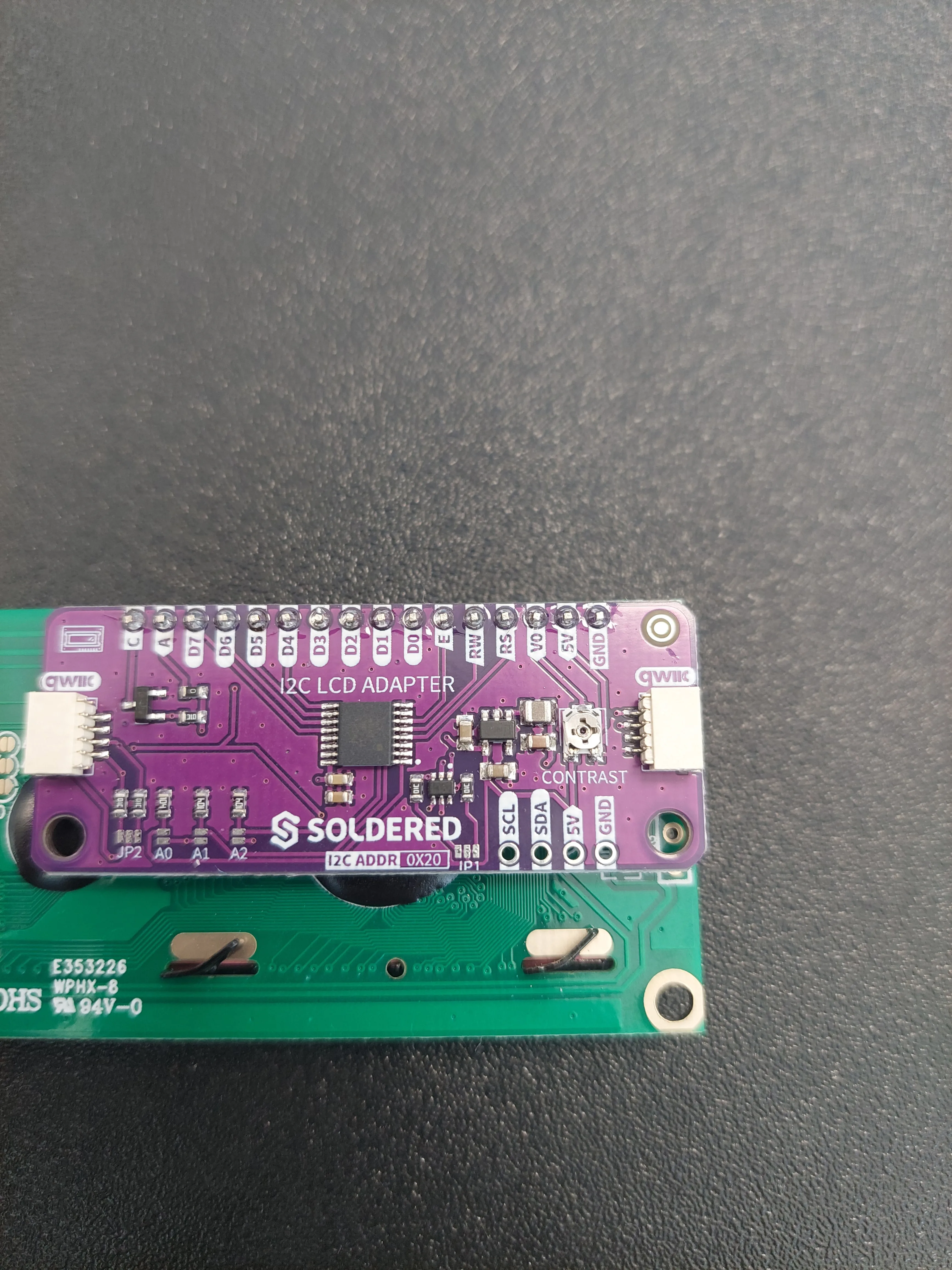
Our I2C protocol guide explains how several devices share those two signal wires.
LCD vs OLED vs LED matrix vs e-paper
| Display type | Best for | Not ideal for |
|---|---|---|
| LCD | Menus, live values, sensor readings | Low-power, always-on dashboards |
| OLED | Sharp compact screens, icons, high contrast | Large static displays |
| LED matrix | Scrolling text, animations, scoreboards | Detailed text |
| E-paper | Dashboards, calendars, weather displays | Video and fast animation |
An LCD suits values that change often. E-paper suits information that stays on screen for hours, because it uses power only while the image changes. Inkplate 6FLICK is an e-paper display with an ESP32 and a touchscreen built in.


For scrolling text and animation, see our LED matrix projects.
When should you use an LCD display?
Use an LCD when the project shows a small amount of information that changes often:
- sensor readings
- short text messages
- menus and device settings
- timers and counters
- classroom and budget Arduino projects
If it fits in 32 characters and the project is plugged in, a 16x2 LCD is usually the simplest display that works.
When should you choose e-paper instead of LCD?
Choose e-paper when the screen shows the same thing most of the time and has to stay readable all day. It holds the image with no power, reads like paper in daylight and fits a full page layout instead of 32 characters.
That makes Inkplate the better fit for weather dashboards, family calendars, room signs, smart home dashboards, energy monitors and workshop status displays. For a small label or a single value, Inkplate 2 is a compact three-colour e-paper display with an ESP32 on board.


Our e-paper display guide explains how the technology works.
How to use an LCD display with Arduino
Connect four pins, or plug in a Qwiic cable if your board has the connector.
| LCD pin | Arduino pin |
|---|---|
VCC |
5V |
GND |
GND |
SDA |
SDA (A4 on an ATmega328 board) |
SCL |
SCL (A5 on an ATmega328 board) |
In the Arduino IDE, open Sketch > Include Library > Manage Libraries, search for Soldered LCD and install it. Generic LiquidCrystal_I2C libraries do not work with Soldered's adapter.
/*
 * Print two lines of text on a Soldered 16x2 I2C LCD.
 * Connection: Qwiic cable, or VCC, GND, SDA and SCL
 * Board:      any Arduino-compatible or ESP32 board
 * Library:    "Soldered LCD", from the Arduino Library Manager
 */

#include "LCD-SOLDERED.h"

// The display: 16 columns, 2 rows
LCD lcd(16, 2);

void setup() {
  // Start the display and switch the backlight on
  lcd.begin();
  lcd.backlight();
  lcd.clear();

  // Column 0, row 0 is the top-left corner
  lcd.setCursor(0, 0);
  lcd.print("Hello, world!");

  // Row 1 is the bottom line, 16 characters wide
  lcd.setCursor(0, 1);
  lcd.print("LCD is working");
}

void loop() {
}
If the backlight is on but the screen looks empty, turn the contrast potentiometer on the back of the adapter.
Want to build the board too? The Make your own NULA kit has you solder an Arduino-compatible board from parts, and the sketch above runs on it.

How to use an LCD display with ESP32
An ESP32 adds Wi-Fi and Bluetooth, so the LCD can show MQTT messages, Home Assistant values or data from a web API. The same sketch runs unchanged. Check two things:
- Voltage. ESP32 pins run at 3.3 V. Soldered's adapter accepts 3.3 V logic. A 5 V-only module may not.
- I2C pins. They differ between ESP32 boards. Check your pinout, or use Qwiic.
NULA Mini ESP32-C6 has Wi-Fi 6, Bluetooth and a Qwiic connector, so it plugs straight into the LCD.


LCD display project ideas
Temperature and humidity display
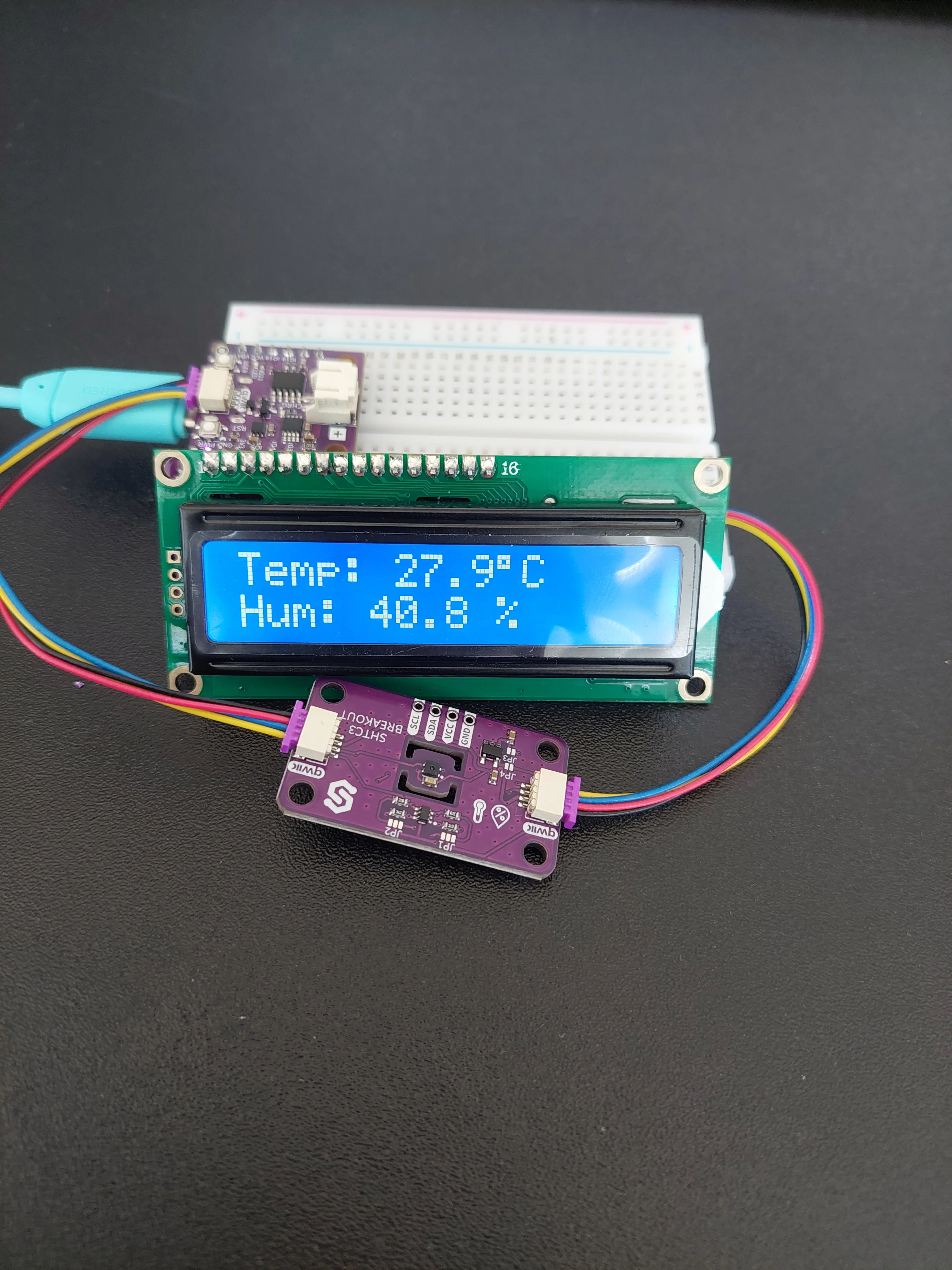
Read a sensor every few seconds and print both values, one per line. It is a good first project because two I2C devices share one bus.
Digital clock
An RTC (real-time clock) module keeps time on its own backup battery. Print the time every second. Add a button and a buzzer for an alarm.


Distance display
An ultrasonic sensor times a sound pulse to measure distance. Print it and you have a parking sensor or a tank level meter. The HC-SR04 is a 5 V part, so check the echo pin's voltage before you connect it to an ESP32.

Plant monitor
Show soil moisture and print "Water me" when it drops below a threshold.


Door or window status display
A reed switch tells the board whether a door or window is open. Show each one on the LCD, so you can check the house before you leave.
Menu system
Buttons for up, down and select turn the LCD into a settings screen for any project. The Zero to Hero kit includes the LCD, buttons and a NULA board, and its examples build up to a Wi-Fi alarm clock.

Energy monitor
Print voltage on one line and current on the other. Multiply them for power.


For a graph of the whole day, a 9.7-inch Inkplate 10 is the better screen.


Home Assistant status display
An ESP32 can show the indoor temperature, the alarm state or whether the garage door is closed. For a full dashboard, see our guide to Home Assistant e-paper displays.
Classroom counter or timer
An LCD and two buttons make a quiz scoreboard or a countdown timer for group work. A class of beginners can finish it in one lesson.
E-paper weather dashboard
This is the next step when a project outgrows 32 characters. The ESP32 downloads the forecast every half hour and draws it with icons. Between updates, the screen uses no power.


Common mistakes when using LCD displays
-
Wrong I2C address. Many tutorials use
0x27. Soldered's adapter defaults to0x20. - Contrast not set. Backlight on, screen empty. Turn the potentiometer on the back.
- SDA and SCL swapped. Nothing shows and nothing reports an error.
- Wrong library. Generic libraries compile but do not drive the adapter.
- Too much text. Each line fits 16 characters. The rest is cut off.
- LCD on a battery. The backlight drains it. Use e-paper instead.
How to choose the right display for your project
| Project goal | Best display choice |
|---|---|
| Show simple text and values | LCD |
| Show menus on an Arduino project | LCD |
| Build a compact high-contrast interface | OLED |
| Create scrolling text or animations | LED matrix |
| Create a colourful touch interface | TFT LCD |
| Build a weather dashboard | Inkplate / e-paper |
| Build a smart home status board | Inkplate / e-paper |
| Build a low-power wall display | Inkplate / e-paper |
| Display data from a Raspberry Pi | LCD for a few values, e-paper for a dashboard, HDMI for a desktop |
Why Soldered is a great place to start building display projects
Soldered makes the parts for both ends of this guide. Start with a 16x2 I2C LCD, a NULA board and a Qwiic sensor, with no soldering. When the project needs more space or has to run all day, the same ESP32 code moves to an Inkplate.
Frequently asked questions
What is an LCD display?
A screen that uses liquid crystals to control how light from a backlight passes through it. In projects, it shows text, numbers, menus and sensor values.
How does an LCD display work?
A voltage turns the liquid crystals in each pixel, which decides whether the backlight gets through.
What is a 16x2 LCD display?
A character display that shows 16 characters on each of 2 rows. It is the most common display in Arduino beginner projects.
What is an I2C LCD display?
An LCD with an adapter that talks over I2C. It needs four connections, VCC, GND, SDA and SCL, instead of sixteen.
Can I use an LCD display with Arduino?
Yes. LCDs work with any Arduino-compatible board, for sensor readings, menus, timers and counters.
Can I use an LCD display with ESP32?
Yes. Use one that accepts 3.3 V logic. Choose an ESP32 when the display needs Wi-Fi, MQTT or Home Assistant data.
What is the difference between LCD and OLED?
An LCD blocks light from a backlight. An OLED pixel makes its own light, which gives higher contrast and true black.
What is the difference between LCD and e-paper?
An LCD suits values that change often. E-paper suits information that stays on screen all day, because it holds the image with no power.
Should I use LCD or Inkplate for my project?
An LCD for a few live values, menus or frequent updates. Inkplate for a larger, low-power display that shows dashboards, calendars or weather all day.
What projects can I build with an LCD display?
Temperature displays, clocks, distance readouts, plant monitors, menus, energy monitors, classroom timers and smart home status screens.
Why is my LCD display not showing text?
Check the contrast potentiometer first. After that, the I2C address, the SDA and SCL wiring, and the library.
Is LCD better than LED matrix?
For readable text and menus, yes. An LED matrix is better for scrolling text, animation and anything seen across a room.


